
Image to SVG Converter
Convert PNG, JPG, or WebP artwork into clean SVG vector paths. Your image is processed locally in your browser and is not uploaded to the server.
Convert Images to Clean SVG Vector Files
Turn your PNG, JPG, JPEG, or WebP artwork into a clean, scalable SVG file with the STLPlayground Image to SVG Converter. Instead of simply placing your original image inside an SVG container, the converter traces your artwork into real vector paths that can be used for 3D printing, CAD, cutting, engraving, and other vector-based workflows.
The converter is especially useful for logos, icons, silhouettes, clip art, team graphics, signs, and other artwork that you want to incorporate into a custom 3D printed design.
Designed for 3D Printing
Traditional raster images such as PNG and JPG files are made from pixels. SVG files use mathematical paths to describe shapes, curves, and color regions. Converting artwork into true vector geometry makes it much easier to turn a 2D image into printable 3D geometry.
You can use your converted SVG to create:
- Raised logos and graphics
- Recessed or engraved artwork
- Custom signs and nameplates
- Multi-color 3D printed designs
- Decorative model elements
- Team and school logos
- Custom tags, medallions, props, and displays
After converting your artwork, you can bring the SVG directly into compatible STLPlayground 3D builders and turn it into a customized printable model.
Convert PNG, JPG, and WebP Images to SVG
The Image to SVG Converter supports several common image formats, including PNG, JPG/JPEG, and WebP. Transparent PNG artwork is particularly useful because transparent portions of the image can be automatically excluded from the resulting vector artwork.
For the best results, start with an image that has clearly defined edges, strong contrast, a simple or transparent background, and a limited number of meaningful colors.
PNG to SVG
Convert transparent PNG graphics, logos, icons, silhouettes, and other artwork into scalable SVG paths. PNG files with transparent backgrounds are often ideal for creating clean vector artwork for 3D printing.
JPG to SVG
Convert JPG and JPEG images into SVG geometry while using background removal and tracing controls to separate your artwork from the surrounding image.
WebP to SVG
WebP artwork can also be traced into editable SVG vector regions, making graphics originally prepared for the web easier to reuse in 3D design and fabrication workflows.
Single-Color and Multi-Color SVG Conversion
Choose between single-color and multi-color conversion depending on your artwork and how you plan to use it.
Single-color conversion works well for silhouettes, icons, text graphics, line artwork, simple logos, and designs that will become one raised or recessed region in a model.
Multi-color conversion separates artwork into multiple printable color regions. This is useful for logos, sports graphics, mascots, clip art, layered decorations, and designs intended for multi-color or multi-material 3D printing.
Optimize SVG Files for 3D Printing
Artwork that looks good on a screen is not always ideal for creating 3D geometry. Anti-aliased edges, tiny isolated pixels, unnecessary colors, and overly complex paths can all create problems when an SVG is extruded or converted into a printable model.
The converter includes controls designed to help create cleaner geometry, including:
- Detail adjustment
- Edge smoothing
- Background removal
- Small shape and island removal
- Curve simplification
- Color refinement
- Printable color limits
- Right-angle preservation
For most 3D printing projects, cleaner and slightly simplified vector geometry is more useful than preserving every pixel-level detail from the original image.
Create SVG Artwork for STLPlayground Builders
Many STLPlayground builders support custom SVG artwork, allowing you to add your own logo, icon, graphic, or design directly to a printable model.
A typical workflow is:
Image → SVG → STLPlayground Builder → Printable 3D Model
Once your SVG is ready, browse the 3D Builder catalog to find a project that supports custom artwork.
For example, you can use converted artwork with the Custom Logo Medallion Builder to create layered logo medallions, team graphics, school designs, or multi-color wearable pieces. The medallion builder specifically supports uploaded SVG artwork and is designed around layered, multi-color 3D printing.
You can also add your own SVG graphics to the Cheer Wand & Handheld Sign Builder to create custom team signs, game-day props, event accessories, and personalized handheld designs.
How to Get Better Image to SVG Results
Start With Clean Artwork
Logos, icons, silhouettes, clip art, and flat graphics generally produce the cleanest vector results. Images with a simple or transparent background are easier to trace than complex photographs.
Use Only the Colors You Need
If your design visually contains three important colors, start with approximately three printable colors. Keeping unnecessary anti-aliased shades can produce extra vector regions that are too small to be useful in a physical print.
Remove Tiny Details
Small features that are visible on a computer screen may become extremely thin or fragile when converted into a physical model. Use the preview and small-shape controls to remove details that do not contribute to the finished design.
Simplify Complex Paths
A vector file with more points is not necessarily better. Simpler paths generally process faster and can create smoother, more reliable 3D geometry.
More Than a Basic File Converter
Some image-to-SVG tools simply embed a raster image inside an SVG file. That produces an SVG file extension, but it does not create the vector paths required by many CAD, fabrication, and 3D modeling workflows.
The STLPlayground converter traces your artwork into actual vector regions so the resulting file can be used as geometry rather than just as an embedded image.
Use Your SVG Beyond STLPlayground
The SVG files created by the converter use a standard vector format and can also be used with compatible CAD software, vector editors, cutting machines, engraving workflows, and other applications that accept SVG artwork.
If your goal is to create a printable 3D object, explore the STLPlayground 3D model builders after converting your image and turn your new SVG into a customized model.
Frequently Asked Questions
Can I convert a PNG to SVG?
Yes. Upload a PNG image and the converter will trace the artwork into SVG vector paths. Transparent PNG images are particularly well suited for conversion because transparent portions can be excluded from the resulting artwork.
Can I convert JPG or WebP images?
Yes. The converter supports PNG, JPG/JPEG, and WebP source images.
Does the converter create real vector paths?
Yes. The artwork is traced into SVG vector geometry rather than simply embedding the original raster image inside an SVG file.
Can I make a multi-color SVG?
Yes. Multi-color conversion can separate an image into distinct printable color regions that can be adjusted and exported as SVG artwork.
Is SVG useful for 3D printing?
Yes. SVG paths can be turned into raised features, recessed designs, extruded shapes, backing geometry, contours, and separate color or material regions inside compatible 3D modeling workflows.
Can I use the SVG in STLPlayground builders?
Yes. Compatible STLPlayground builders allow you to upload custom SVG artwork and incorporate it into your printable design. Browse the builder catalog to find projects that support custom artwork.
Can I use the SVG in other software?
Yes. The exported file is a standard SVG and can be used with other compatible vector, CAD, fabrication, and design applications.
Turn Your Artwork Into a 3D Design
Convert your existing image into clean vector geometry, download the SVG, and use it as the starting point for a custom 3D printed project. Whether you are working with a logo, icon, silhouette, team graphic, or original artwork, the Image to SVG Converter provides a direct path from a raster image to reusable vector geometry.
Ready to create something with your new SVG? Explore all STLPlayground 3D builders and start designing your next printable model.
Related Utilities
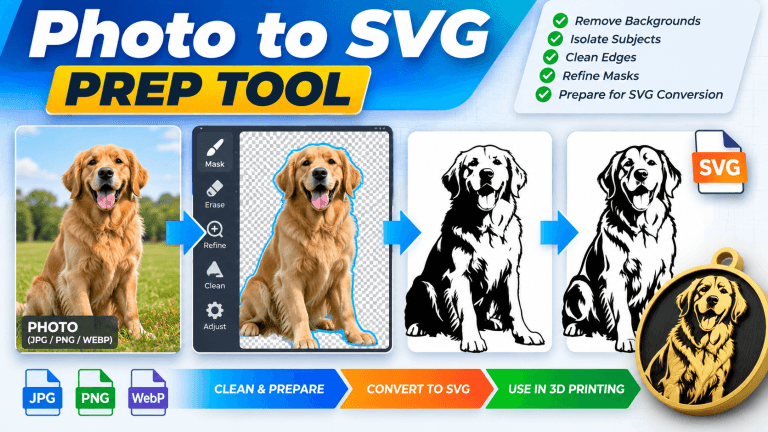
Photo to SVG Prep Tool
Clean up photos before SVG conversion. Isolate your subject, refine masks and edges, remove unwanted areas, and prepare…