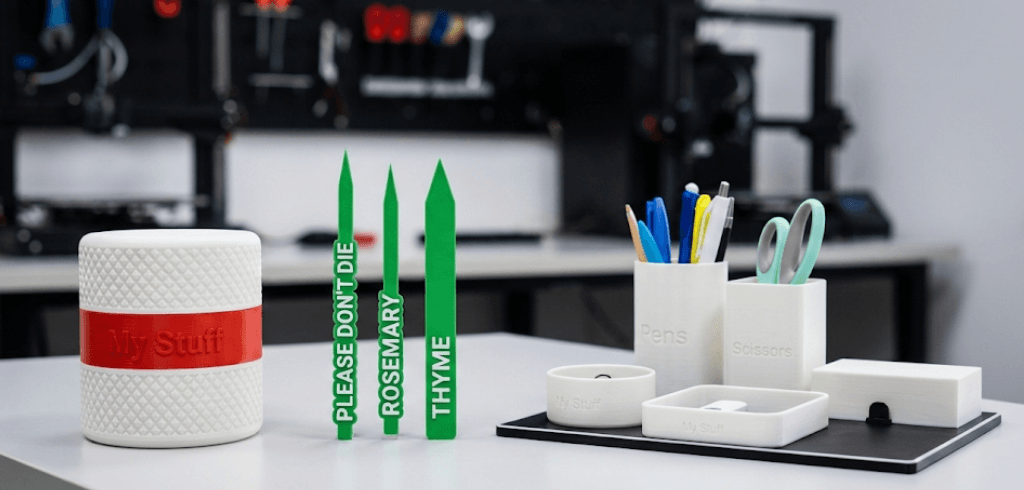
Hi, I’m Fil, and not all of us are lucky enough to have a multi color 3D printer. When you have them, they are great, but sometimes you really want or need to print multiple colors with a single filament machine. Well, it’s not that hard if you are willing to play a bit.
 Hi, I’m Fil, and not all of us are lucky enough to have a multi color 3D printer. When you have them, they are great, but sometimes you really want or need to print multiple colors with a single filament machine. Well, it’s not that hard if you are willing to play a bit.
Here are a few quick tips
- Understand the limitations. Printing multiple filaments means a manual change every time the filament changes, so prints where there are more than one color from top to bottom means you will need to change your filament every layer. Try and avoid that if at all possible.
- Think about the design and the layout. Can the print lay in such a way that layers 1-20 are one filament and layers 21-30 are a second? That means only one filament change, which is very ideal
- Think about the filament. The filament itself needs to be able to bond with the previous layer after the switch. Try and find filament that has similar printing characteristics. i.e. don’t try and mix PLA with ABS or others that have very different characteristics. You can try it, but it may not work the way you want it to.
- Test and experiment with small samples. Mock up some small pieces to give it a try. Trying it for the first time on a 24 hour print probably isn’t the best idea.
Ok, now that we’ve laid the ground work, how do you actually do it?
As always you need a good slicer. I’ve always had Creality printers, so when they came out with a slicer I was on board. Others may have similar functionality, but I’m going to show you in the Creality Print slicer. I’m going to assume you know how to load models into the slicer and have it set up to your specific printer and filament settings.
Load your object
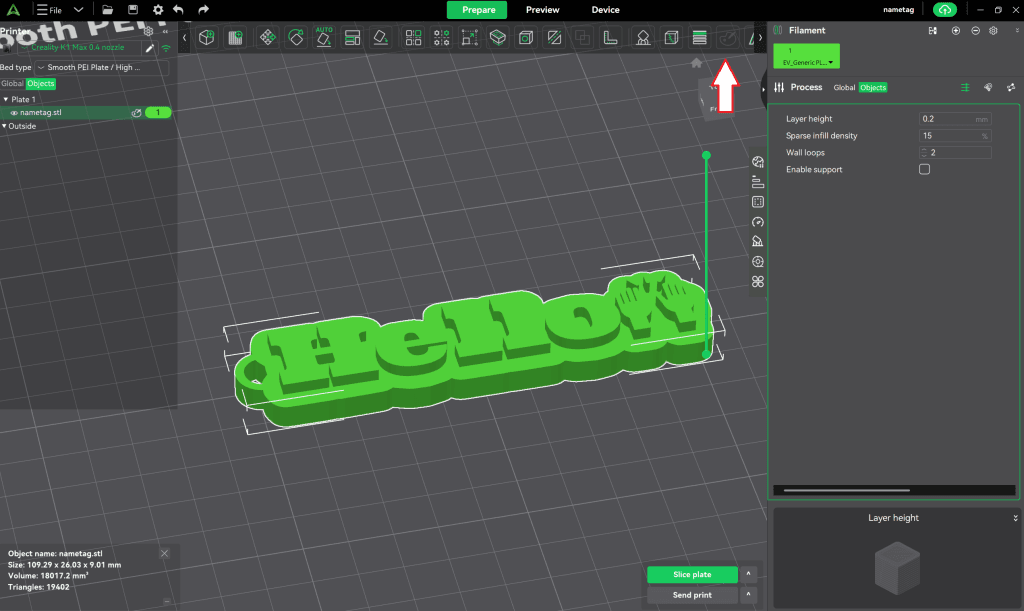
For this example I’ve loaded a nametag from our Nametag Generator tool. You can clearly see there is a base layer that we will want one color and the name layer that we will want another. When you select the object and you have a single filament printer configured, there is not option to use the “Color Painter”, which you can see with the red and white arrow below.
Add Filament
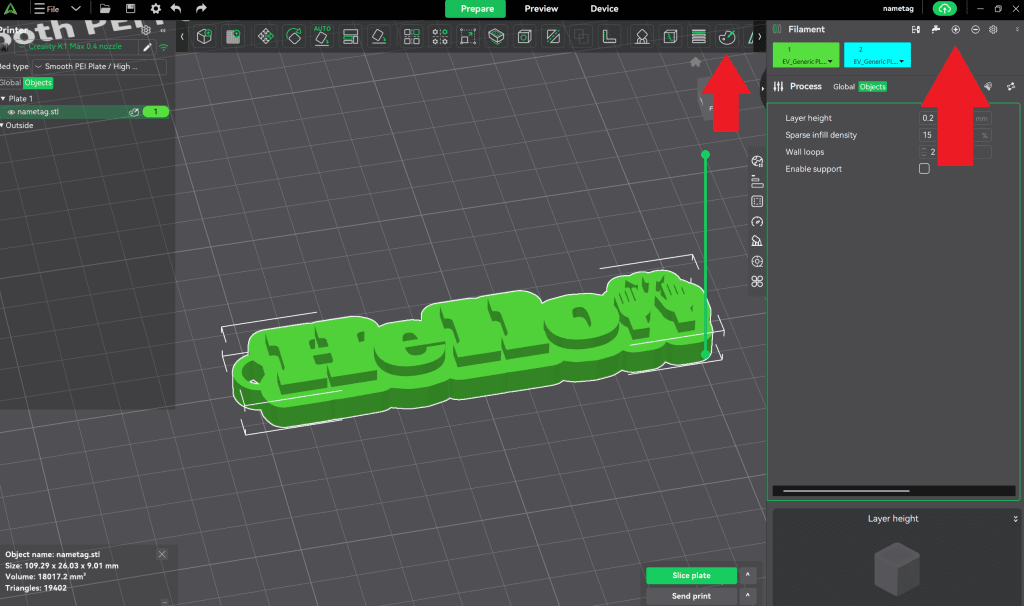
To fix this we’ll need just one step. Yes, you can add filament to a slicer project when you have a single filament printer! {mind blown}
In the upper right, filament area by the large red arrow, click the plus sign and it will add filament 2. Make sure the filament it adds is a compatible filament. PLA and PLA or something like that. But, you can see by the small red arrow that now we are able to use the “Color Painter”. Woohoo!! Almost there.
Paint your layers
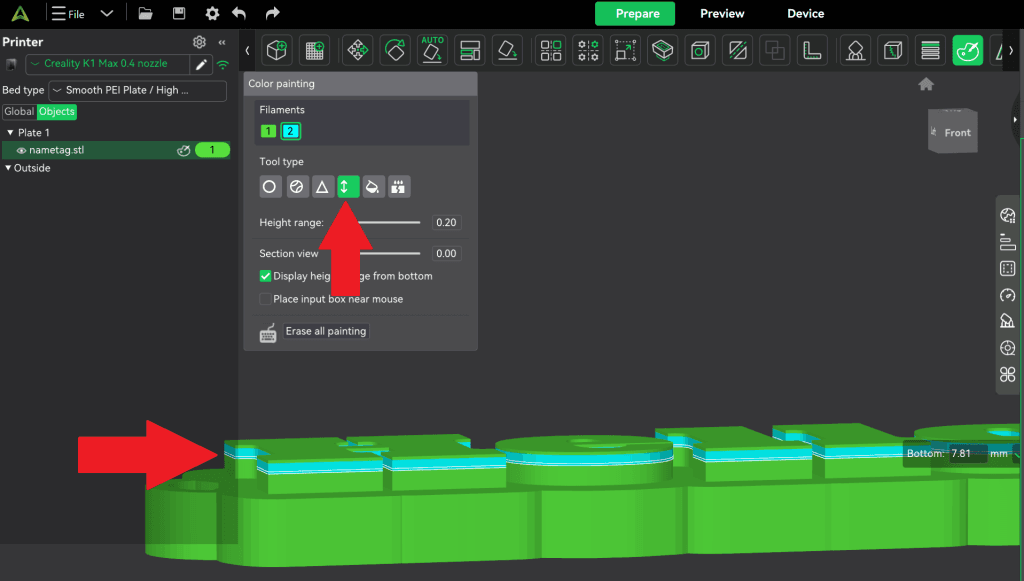
Next, click on the Color Painter and it will open another window. Here there are several options for painting the filament onto the object. I’ve found the best one is the “Height Range” option, highlight below by the red arrow pointing up. This allows you to basically paint layers. If you use this, zoom in and adjust the angle on your object you can “paint” the layers that you want to use filament 2. You can see the start of that with the lower red arrow. Go all the way down to the base and then try and slice your print. If you paint too much, just ctrl-z and try again.
Slice and verify
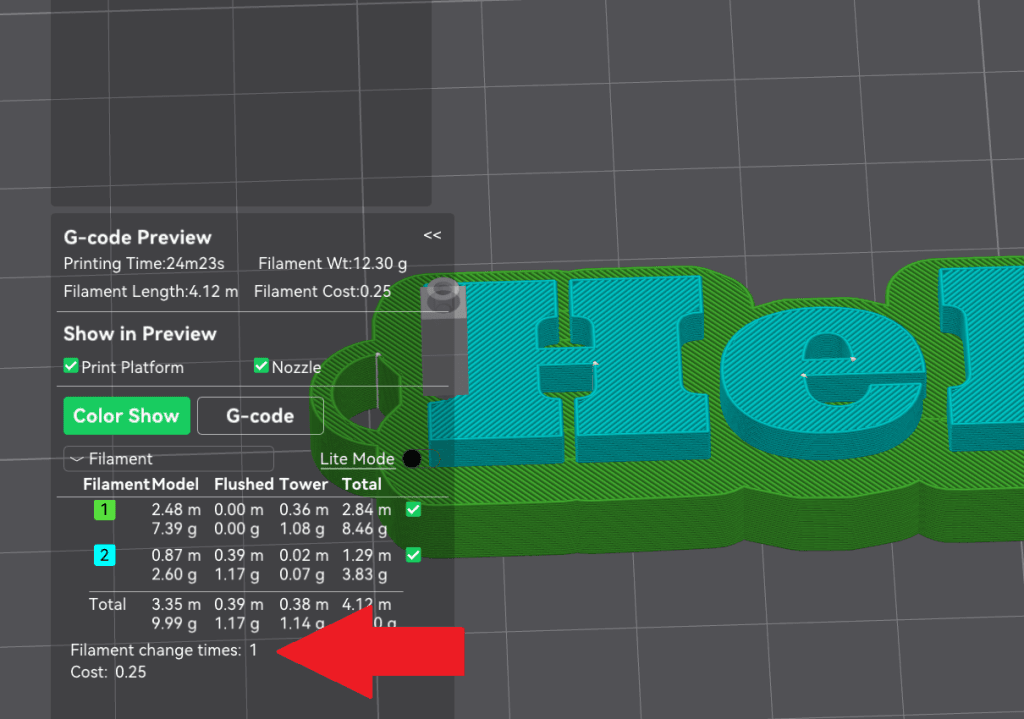
Ok, you’ve painted the entire area you want, and you’ve sliced it. Perfect, you can see the example below looks great, right!?! Here’s the final check I like to do. I like the check how many times it’s going to ask me to change filaments. See the red arrow? 1 filament change, I can handle that. This is going to print out the base and then ask me to change the filament for the name. Printing a really awesome nametag!!!
Give this a try and let us know how it worked or if you have any other ideas to making awesome 3D prints.
Table of Contents
Continue Exploring!

Hi, I’m Fil, and I love the speed and build volume of my K1 Max. It’s a beast. But for a long time, I looked at my Bambu Lab or [...]

Hi, I'm Fil, and not all of us are lucky enough to have a multi color 3D printer. When you have them, they are great, but sometimes you really want [...]